
Welcome to Accelerate AR Remote Deposit Capture!
We Are Here to Support Your Onboarding to Accelerate AR RDC
Welcome to Accelerate AR RDC services with Synovus! We are thrilled to have you on board and excited to introduce you to our Remote Deposit Capture (RDC) service. Within this site you will find everything you need to get started using our services.
Need Assistance?
Have questions or need additional assistance? Contact your Treasury Management Team or reach out to our Customer Care Team for support.
Customer Care Team
Hours: Monday through Friday, 8am-6pm EST
Phone: (888) 796-6887, option Treasury


How to Obtain Hardware
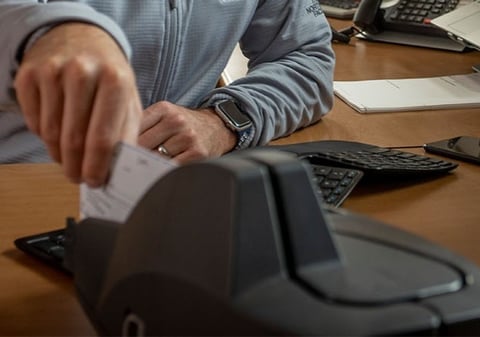
- Procuring a New Check Scanner: You may purchase a compatible check scanner within our Synovus Treasury E-Commerce Store. Within this site you can review our available scanner options for selection and purchase, manage orders and warranties, and order additional supplies as needed.
- Using Your Own Scanner: If you already own a check scanner, please ensure it meets the Operating Requirements for Check Scanner Compatibility. Our support team is available to assist with compatibility checks and setup.


Assisted Installation Path
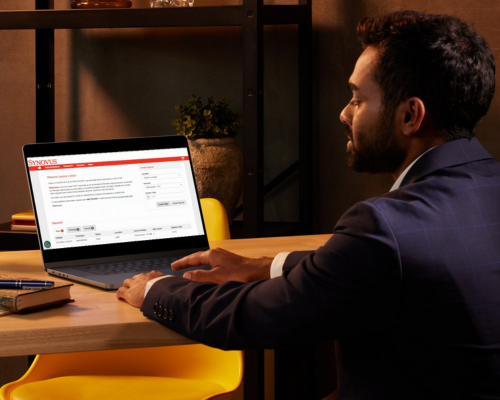
For clients who prefer personalized support, our Assisted Installation Path provides a dedicated Onboarder to assist with the software installation and training. This option includes:
- Dedicated Support: A dedicated Onboarder will guide you through the installation process, ensuring all steps are completed correctly.
- Training: Comprehensive training on using the software effectively, tailored to your specific needs.
- Appointment Scheduling: Schedule an appointment at your convenience for a one-on-one session with your Onboarder.
.png)
Downloads

Videos
Frequently Asked Questions
What are the features and functionality of Accelerate AR RDC?

Accelerate AR RDC offers the following features and functionality:
- Administrative user functionality
- Location vs. account delineation and reporting
- Duplicate detection and override capabilities
- Deposit correction including misread edits for deposit amounts, MICR line, and batch totals
- Deposit tape feature
- Single sign-on access for all users through the Synovus Gateway digital banking portal
- Improved deposit reconciliation features including custom fields at batch and check level
- Extended deposit flexibility with memo posts and 7 pm EST/6 pm CST cut-off for same day processing batch
How do I access Accelerate AR RDC?
Log in to Synovus Gateway and navigate to the Accelerate Solutions menu and select Accelerate AR RDC.
How do I add a user to Gateway for access to Accelerate AR RDC?
What is the cut-off time for same-day deposits?
Accelerate AR RDC offers extended same-day deposit cut-off times of 7 pm ET/6 pm CT.
Note: Deposits can still be processed after the same-day cut-off time and will be processed as next day for additional deposit flexibility.
Can I bring an existing scanner from another bank for use with Accelerate AR RDC?
Can I choose to perform the installation myself without assistance?
How does pricing work for AR RDC?